The intelligence and management layer behind every HoloStrata deployment.
Not a conventional computer operating system — the software layer that manages HoloStrata content, users, applications, sessions, devices, permissions, analytics, updates and institutional deployments.
How HoloStrata OS runs on the table.
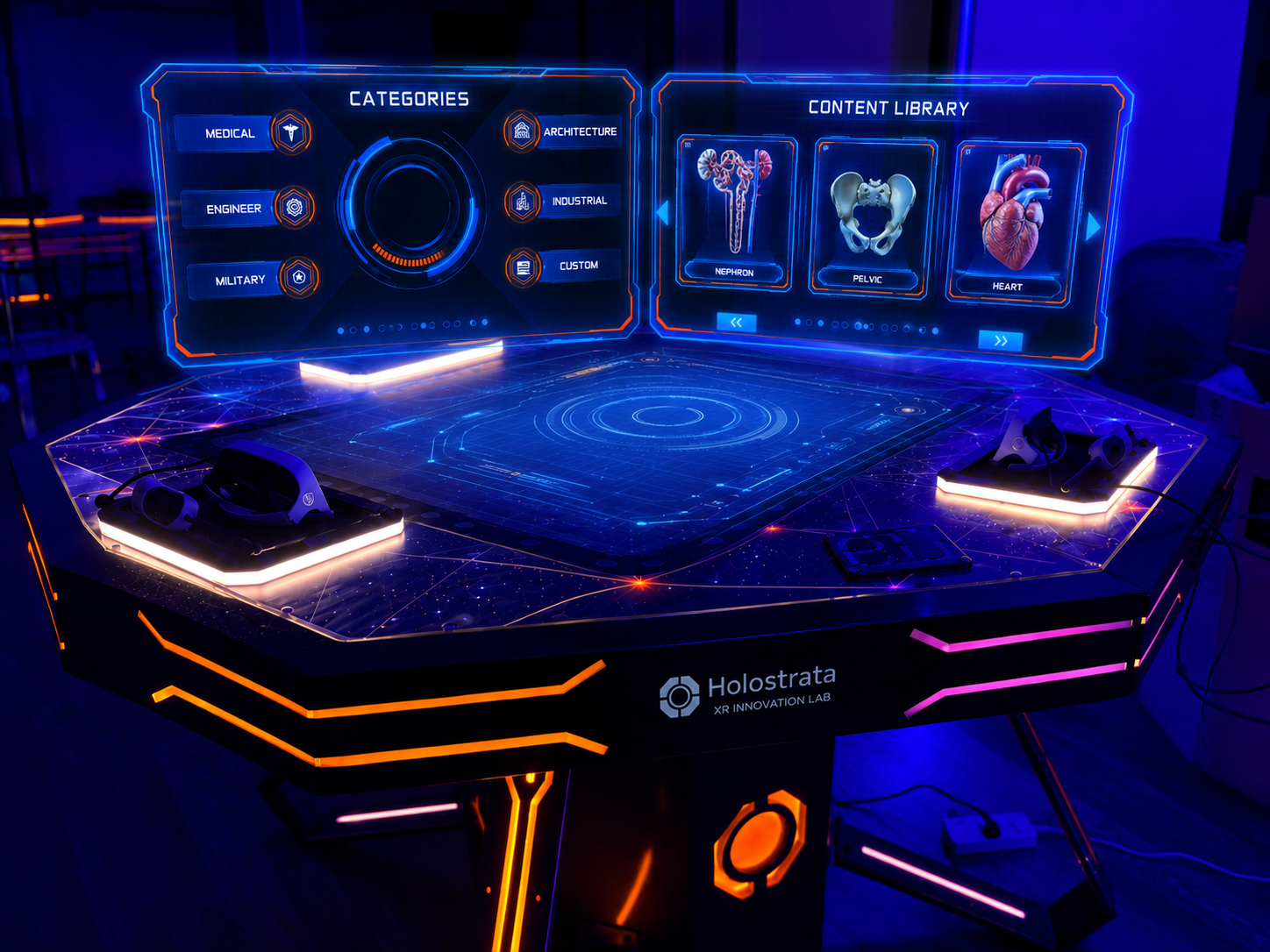
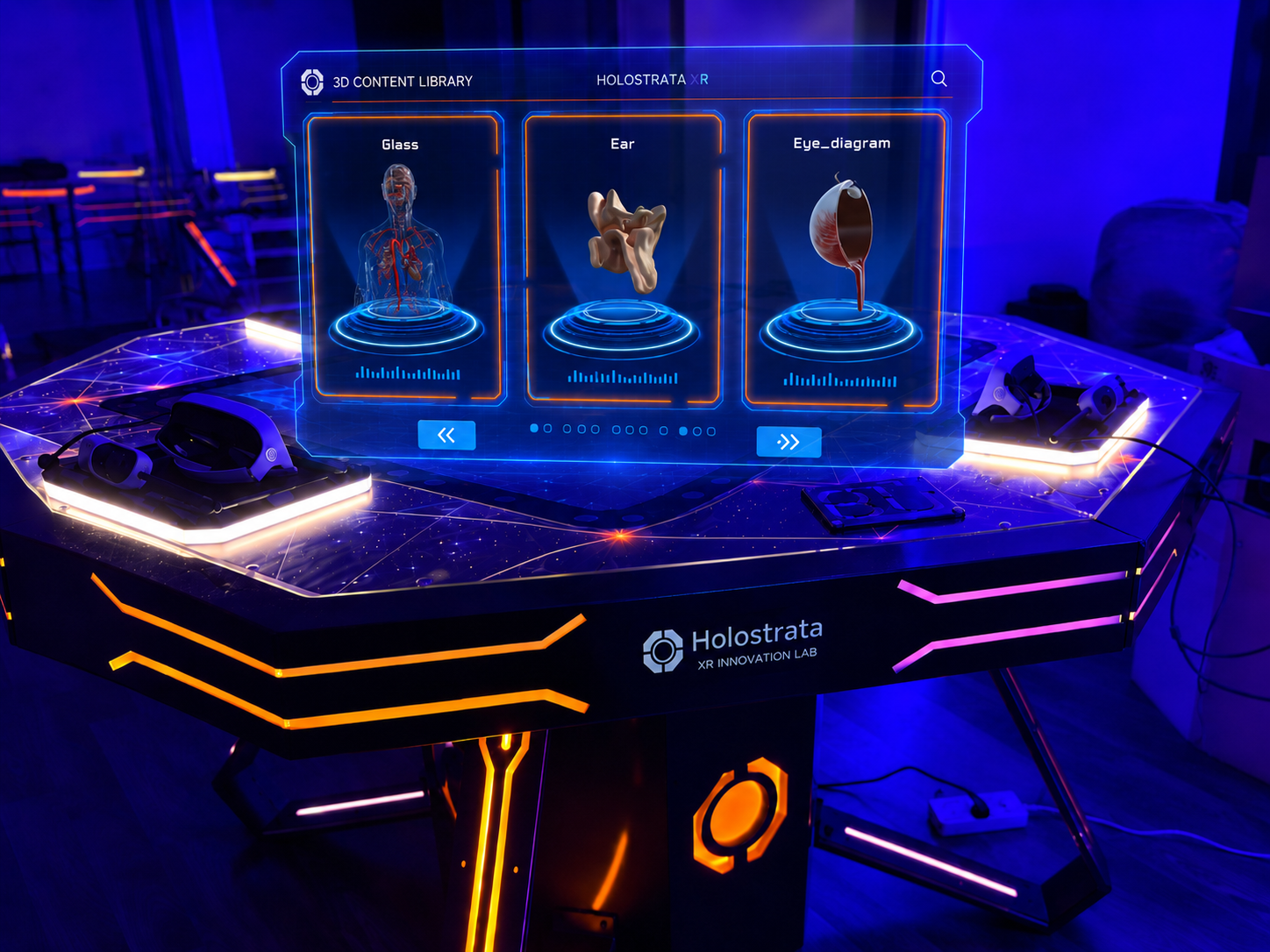
These are live screens rendered on the table's holographic shader — from secure login through spatial calibration to the interactive 3D content library. Step through the full session flow.
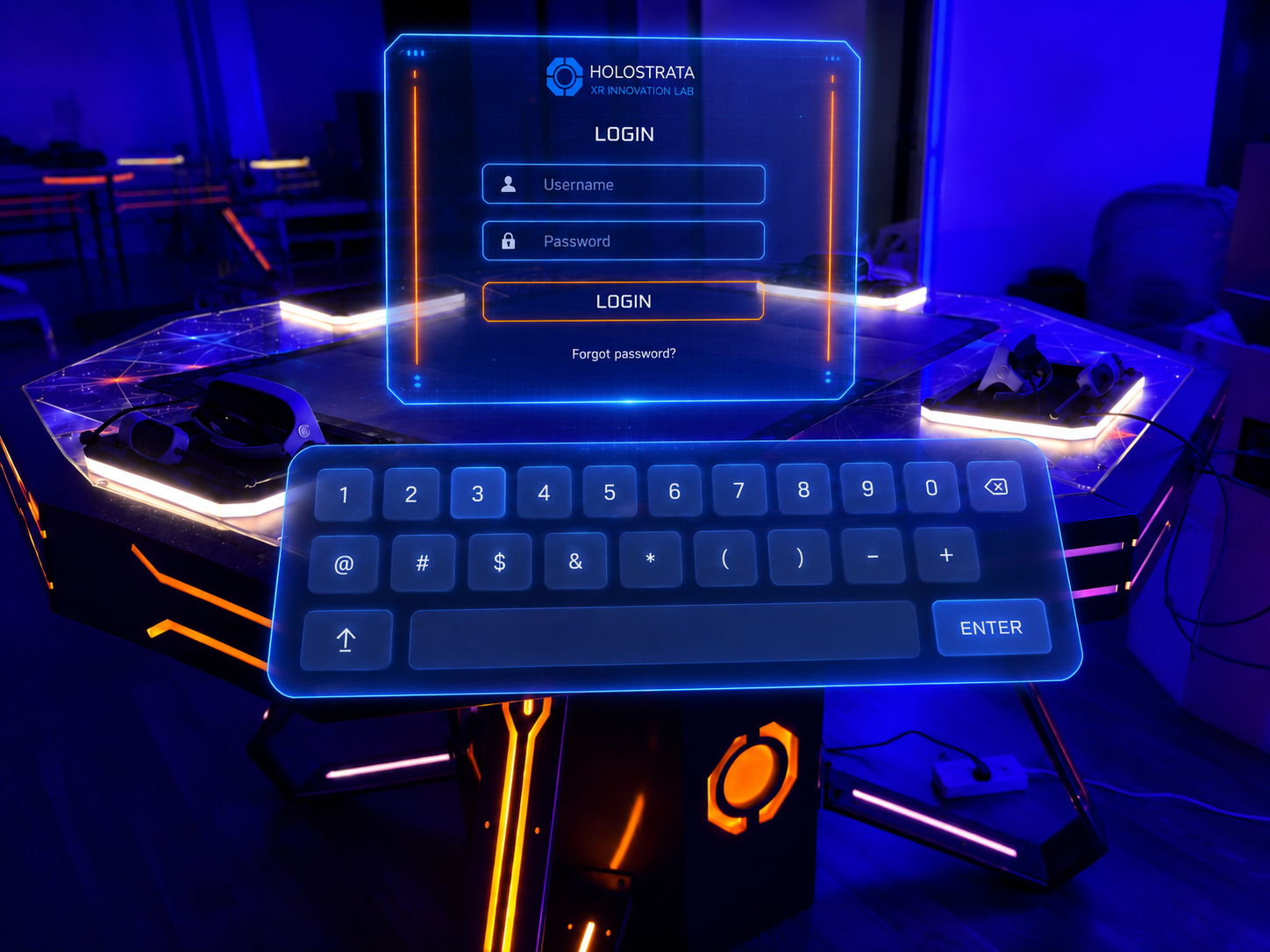
Secure login
Each session begins with authentication. An on-glass holographic keyboard lets facilitators sign in directly on the table surface — no external peripherals required.
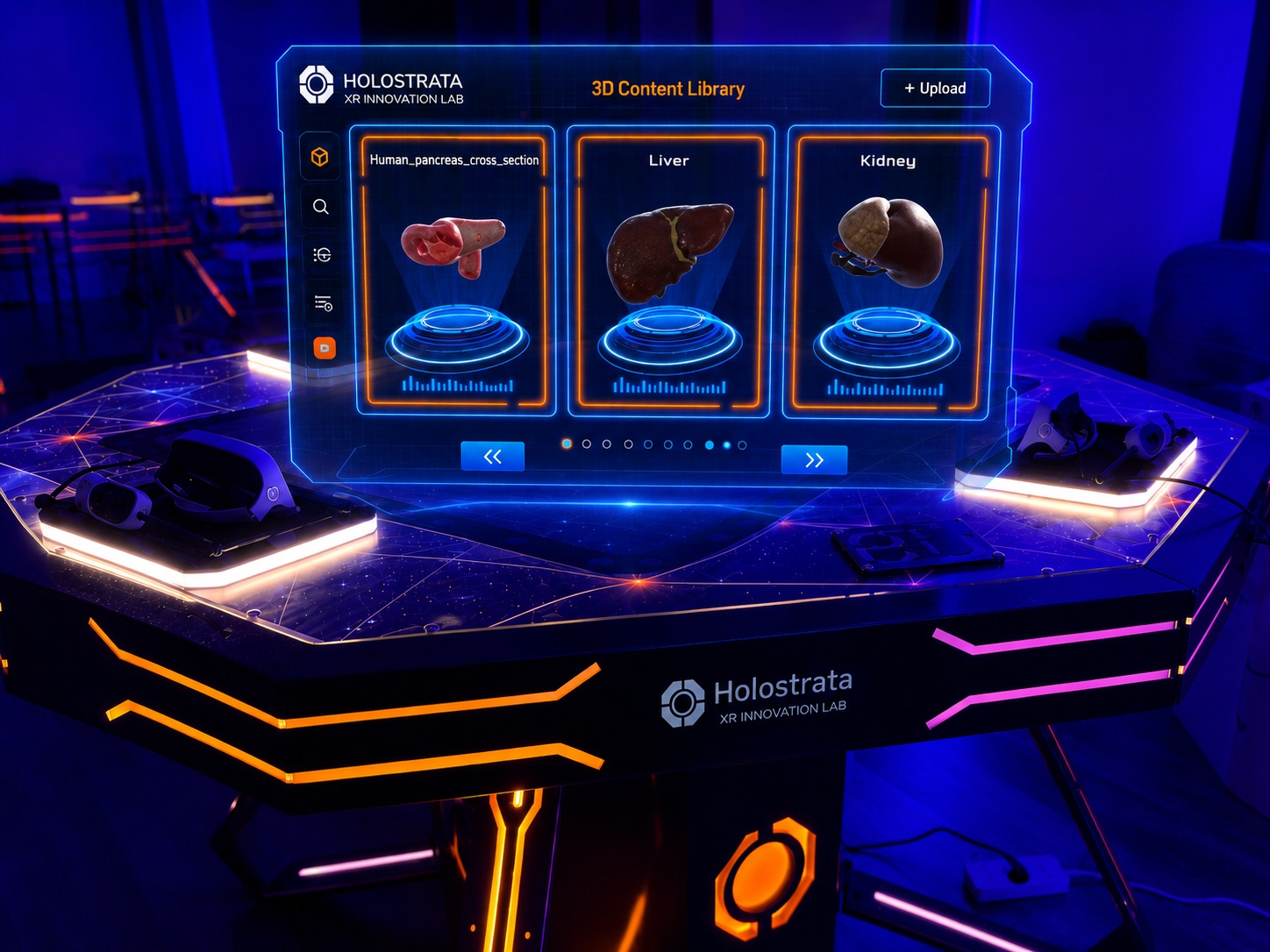
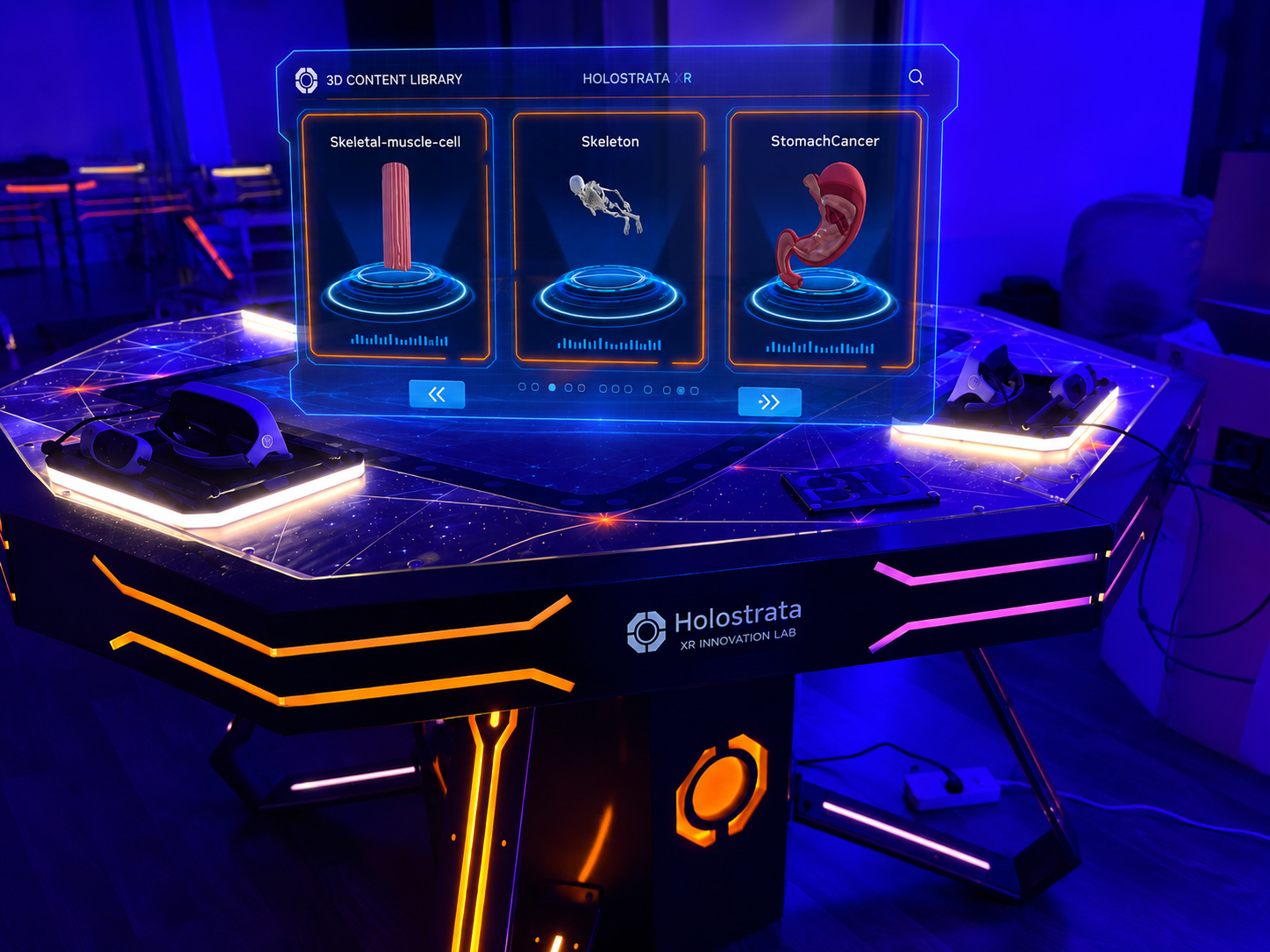
A living catalogue, projected in 3D.
Every model previews live above its projection ring. Browse by category, search, or upload your own assets — then open any item into a full shared hologram.
Everything an institution needs to run Spatial Computing at scale.
Content Library
- Upload and organise 3D assets
- Manage interactive applications
- Organise by sector, course, department or organisation
- Control content availability, versions and updates
Application Management
- Install and activate applications
- Assign applications to locations or departments
- Manage sector packages and versions
- Schedule updates and enable or disable modules
User & Role Management
- Administrator, instructor and facilitator roles
- Student, trainee and guest access
- Department-level permissions
- Institution-level permissions
Session Management
- Start guided, instructor-led sessions
- Select content and control participant access
- Save session configurations
- Repeat standardised training sessions
Device & Deployment Management
- Register HoloStrata units
- View deployment status
- Manage connected interaction devices
- Track software versions across sites
Content Distribution
- Distribute approved content to one or many installations
- Manage institution-specific libraries
- Update content remotely
- Control access by site or user group
Insight into how HoloStrata is used.
Only capabilities that are implemented or verifiably planned are listed. Each is clearly labelled by status.
- Session frequencyAvailable
- Application usageAvailable
- User participationAvailable
- Content engagementIn Development
- Completion trackingIn Development
- Instructor activityAvailable
- Deployment utilisationAvailable
- Training outcomes (with assessment tools)Planned
Connects to your institutional systems.
Integration availability depends on deployment configuration and project scope.
- LMSCustom Integration
- Digital Twin platformsCustom Integration
- Enterprise systemsCustom Integration
- Cloud storageOptional
- Identity managementOptional
- APIsAvailable
- External data sourcesCustom Integration
- Simulation systemsCustom Integration
Institutional control, by design.
HoloStrata does not claim cybersecurity certifications it has not obtained. Security capabilities are described according to what is implemented and available for a given deployment.